How I review AWS costs for small teams without turning it into a FinOps project
A realistic, actionable AWS cost review process for teams that can't justify a full FinOps function — and don't need one.
How I review AWS costs for small teams without turning it into a FinOps project

Most teams I work with have the same problem: they know their AWS bill is higher than it should be, but they don't have the time or headcount to run a proper FinOps program. They're not a bank. They don't have a dedicated cost team. What they have is an engineer or two who care, and a CTO who's nervous about the bill at the end of every month.
So this is the process I actually use when doing a cost review for a small team. It's deliberately simple. The goal isn't perfect cloud economics — it's making the most impactful changes with the least operational disruption.
Who this is for
Engineering teams of 3–30 people on AWS who:
- have never done a formal cost review
- are spending somewhere between $2,000 and $30,000/month
- don't have dedicated FinOps, platform, or SRE headcount
- want to stop wasting money without spending weeks on it
When to use this checklist
Use this when:
- the AWS bill has grown noticeably but workloads haven't changed much
- you're heading into a fundraise or board review and someone asks about cloud spend
- you've just inherited an AWS account and don't know what's running
- costs jumped unexpectedly and you're trying to find why
Don't use this as a substitute for architectural review. If your costs are driven by a flawed design (wrong database tier, oversized data transfer, etc.), that needs a different conversation.
The checklist
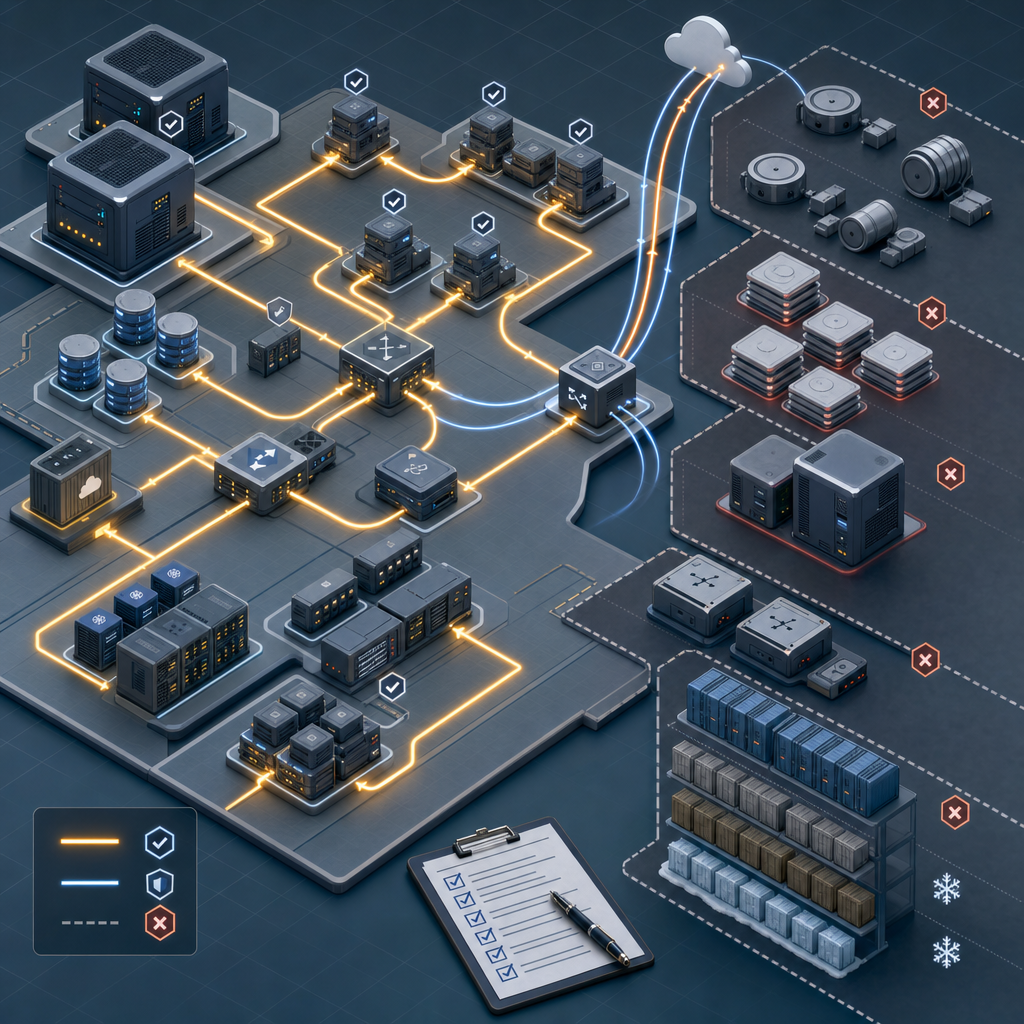
1. Get a cost baseline by service
- Why it matters: You can't prioritise without knowing where the money actually goes. Most teams are surprised — the top-three services usually account for 70–80% of total spend.
- What to check: Go to AWS Cost Explorer → Group by Service → last 3 months. Export or screenshot. Note which services are growing.
- Common miss: Looking at the total and skipping the service breakdown. The total number is almost useless without knowing what's driving it.
2. Check for idle or orphaned resources
- Why it matters: Every account accumulates dead weight: stopped EC2 instances that were "paused temporarily", unattached EBS volumes, old snapshots, forgotten Load Balancers. These cost money every month for no reason.
- What to check:
- EC2 instances with < 5% CPU for 2+ weeks (use CloudWatch or Cost Explorer rightsizing recommendations)
- Unattached EBS volumes (EC2 → Volumes → filter by
available) - Snapshots older than 90 days with no attached instance
- Load Balancers with zero active connections
- RDS instances in stopped state (AWS restarts them after 7 days anyway — if they keep stopping, consider deleting)
- Common miss: Forgetting about EBS snapshots. They accumulate silently and can add up to hundreds of dollars/month for teams that do daily automated snapshots without a retention policy.
3. Evaluate compute sizing
- Why it matters: EC2 over-provisioning is the single most common source of avoidable cost in small accounts. Teams size for worst-case traffic and never revisit.
- What to check:
- CloudWatch CPU and memory metrics for all running EC2 instances
- Look for instances consistently below 20% CPU — they're candidates for downsizing
- Check whether any instances could move to a newer generation (e.g., m5 → m7g gives 20–40% performance-per-dollar improvement)
- For ECS/Fargate workloads: check task CPU/memory allocation vs actual usage
- Common miss: Rightsizing RDS. It's easier to over-provision a database "to be safe" and forget about it. Look at CloudWatch
DatabaseConnectionsandCPUUtilization— a db.r5.2xlarge running at 5% is wasted money.
4. Look at data transfer and NAT Gateway costs
- Why it matters: Data transfer and NAT Gateway charges are invisible until they're not. I've seen accounts where NAT Gateway charges were higher than EC2.
- What to check:
- Cost Explorer → Group by Usage Type → filter for
DataTransferandNatGateway - If NAT Gateway is significant, find out what's making outbound calls. Often it's agents, SDKs, or monitoring tools running in private subnets making external API calls continuously.
- Check inter-AZ data transfer: traffic between availability zones is not free. Some architectures create unnecessary cross-AZ hops.
- Cost Explorer → Group by Usage Type → filter for
- Common miss: Assuming data transfer is just S3 or CloudFront. Most unexpected transfer costs come from EC2 and internal service traffic.
5. Review S3 storage and request costs
- Why it matters: S3 is cheap per GB, but it adds up fast for teams doing large numbers of requests or storing infrequently-accessed data in Standard storage class.
- What to check:
- Which buckets have the most data (use S3 Storage Lens or
aws s3api list-objects-v2with summary) - Are there buckets storing old logs, backups, or artifacts with no lifecycle policy?
- Is anything in S3 Standard that's clearly cold (logs older than 30 days, deployment artifacts, backups)?
- Check S3 request costs in Cost Explorer —
PUT,GETrequest charges can be surprisingly high for data pipeline workloads
- Which buckets have the most data (use S3 Storage Lens or
- Common miss: Application logs or CI/CD artifacts being stored indefinitely. A lifecycle policy expiring objects after 30–90 days is usually safe and meaningfully reduces costs over time.
6. Evaluate commitment options if spend is predictable
- Why it matters: If your EC2 or Fargate spend is reasonably predictable, Savings Plans can reduce compute costs by 20–40% with minimal effort.
- What to check:
- Go to Cost Explorer → Savings Plans → Coverage report. Low coverage with consistent usage is a clear opportunity.
- Compute Savings Plans are the most flexible option for small teams — they apply across EC2, Fargate, and Lambda automatically.
- Start with 1-year no-upfront. Commit only what you're confident you'll keep running.
- Common miss: Confusing Savings Plans with Reserved Instances. For small teams with some architectural flexibility, Compute Savings Plans are almost always the better starting point.
7. Set up a budget alert if you don't have one
- Why it matters: The review you're doing now only captures what's already happened. You need a signal when spend starts drifting.
- What to check:
- AWS Budgets → create a monthly cost budget at 100% of your expected spend, with an alert at 80%.
- Add an alert at 120% as an emergency signal.
- Make sure the alert goes somewhere someone will actually read it (SNS → Slack, not just email).
- Common miss: Creating a budget alert that emails a shared mailbox nobody monitors. Wire it to a Slack channel that someone owns.
What not to overcomplicate
A few traps I see teams fall into during cost reviews:
Tagging everything before doing anything else. Tagging is useful for ongoing visibility, but it's a months-long project for established accounts. Don't let it block the immediate savings. Fix the idle resources and oversized instances first.
Optimising the wrong thing. If you're spending $500/month on EBS snapshots and $8,000/month on EC2, don't spend three days optimising snapshot retention before looking at compute.
Buying commitments before understanding the baseline. Reserved Instances and Savings Plans make sense once you understand what's stable. Buying them on an account you don't fully understand yet is premature — you might commit to resources you're about to change.
Turning this into a platform project. You don't need a cost allocation taxonomy, a FinOps tool, or a chargeback model to reduce your bill. Do the review, make the changes, set the alerts. That's it.
Closing
If you work through this checklist honestly, most small teams find 15–30% in waste within the first pass — primarily from idle resources, over-provisioned compute, and missing lifecycle policies.
The goal isn't a perfect bill. It's a sensible one.
If you get through this and the costs still don't make sense, or you've inherited an account with no clear ownership, that's usually when it's worth bringing in an outside perspective. Not to run a FinOps programme — just to spend a few days finding what the internal team doesn't have time to dig into.
If that sounds like your situation, a free cloud review with AstralDeploy is built exactly for that.
Alejandro Rodríguez
Freelance Cloud & DevOps Consultant, Madrid